Modern cars are more than just vehicles—they’re smart companions that keep you connected on the road. Android Auto brings your phone’s essential apps to your car’s display, making navigation, calls, and music safer and easier to access. Before setting it up, ensure you have a compatible Android phone (running at least Android 8.0), a car that supports Android Auto (either built-in or via an aftermarket stereo), and a high-quality USB cable for wired connections. If you own a Huawei phone, you might encounter the Android Auto not working huawei issue, but don’t worry—there are simple solutions. In this article, we’ll guide you through both wired and wireless setups, along with troubleshooting tips to ensure a smooth experience.
Method 1: Connect via USB Cable
Step 1: Check Phone & Car Compatibility
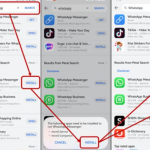
First, confirm that your phone and car support Android Auto. Most modern Android phones work seamlessly, but older models may have limitations. For your car, check the infotainment system’s manual or look for the Android Auto logo in the settings. If you’re using a Huawei phone, you might need to install additional apps since some models don’t support Android Auto out of the box. However, this issue is easily fixable with third-party solutions like Huawei’s own AppGallery alternatives.
Step 2: Enable Android Auto on Your Phone
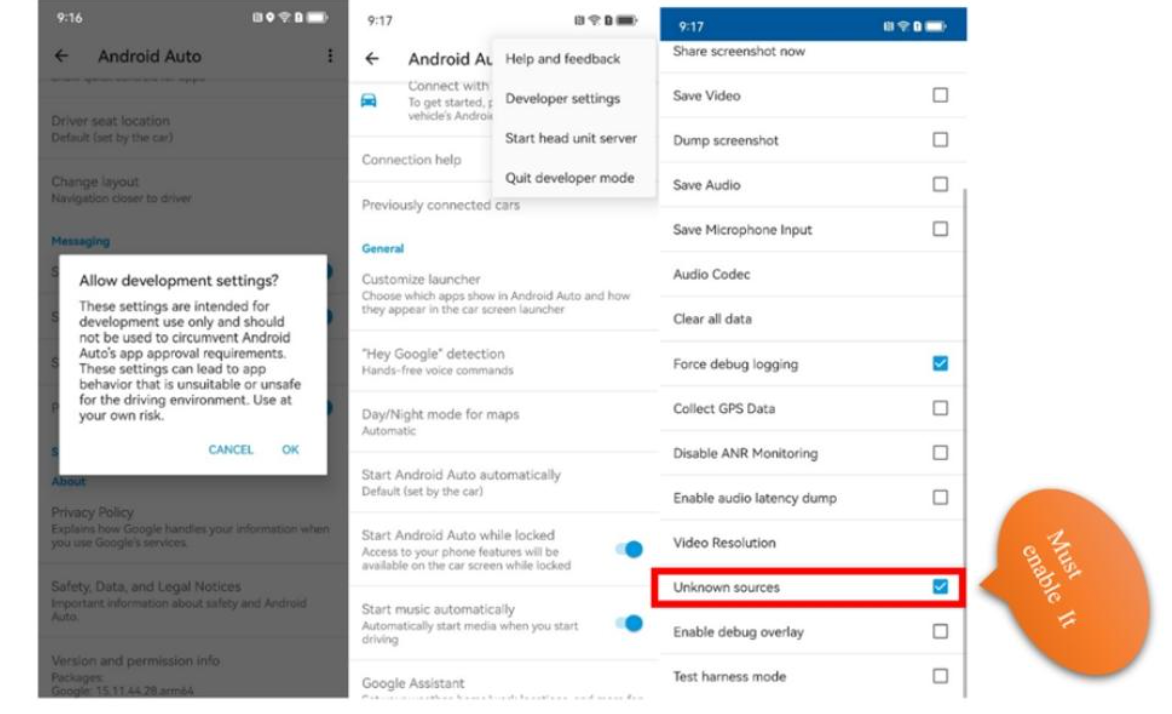
On your phone, download the Android Auto app from the Google Play Store if it’s not pre-installed. Open the app and follow the on-screen setup instructions, granting necessary permissions like location and microphone access. If you’re using a phone and face the “Android Auto not working” problem, try enabling developer options and adjusting USB settings—many users report success with this workaround.
Step 3: Plug In & Set Up on Your Car Display
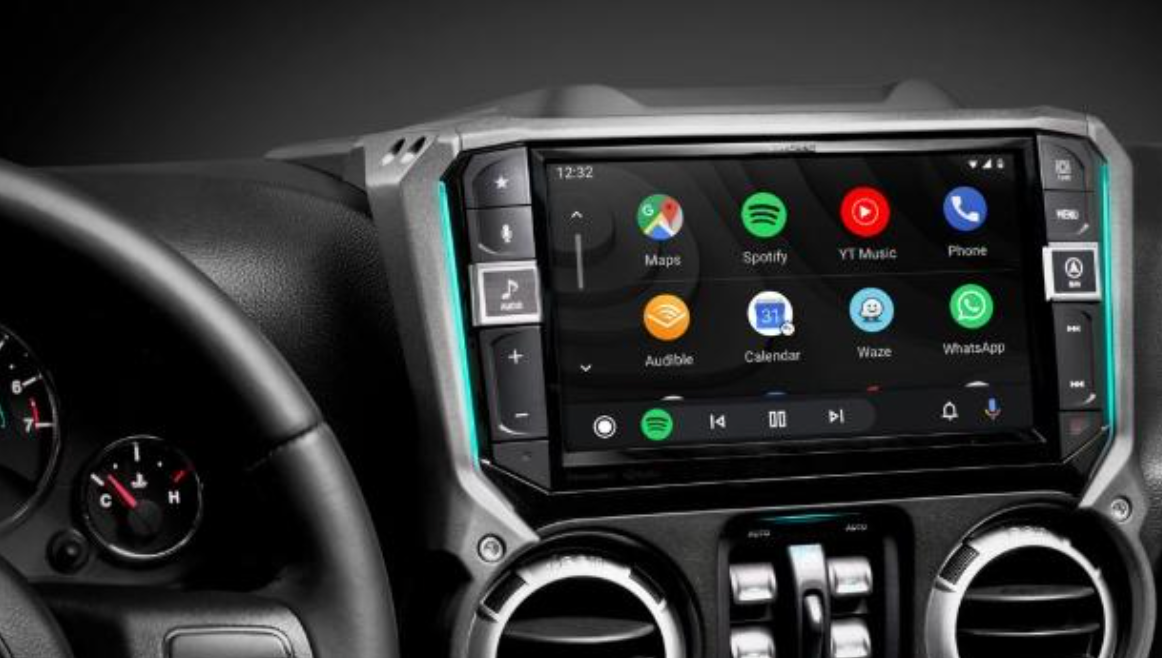
Connect your phone to the car’s USB port using a high-quality cable (cheap cables often cause connection issues). Your car’s display should prompt you to enable Android Auto—accept and follow any additional setup steps. If the screen doesn’t respond, try switching USB ports or restarting both your phone and the car’s infotainment system. Once connected, you’ll see a simplified interface with navigation, calls, and media controls optimized for driving.
Method 2: Wireless Connection (If Supported)
Step 1: Ensure Wireless Compatibility
Not all cars support wireless Android Auto, so check your vehicle’s specifications first. Your phone must also run Android 11 or later for wireless functionality. Verifying compatibility ahead of time can save you from potential frustration during setup. If your car is compatible, you can enjoy a more seamless driving experience without the hassle of cables.
Step 2: Pair via Bluetooth & Wi-Fi
Enable Bluetooth and Wi-Fi on your phone, then pair it with your car’s infotainment system. Open Android Auto on your phone and select “Wireless Connection” in settings. Your car should detect the phone and prompt you to confirm the connection. If issues persist, restarting both devices can often resolve connectivity problems. Make sure to keep your phone close to the car during this process to ensure a stable connection.
Step 3: Enable Wireless Projection
Once paired, Android Auto should launch automatically when you start your car. If it doesn’t, check your phone’s notification panel for a projection prompt. Wireless connections can sometimes lag, so keep your phone charged and close to the car’s receiver for the best performance. Additionally, ensuring your car’s software is up to date can enhance overall connectivity. Regularly checking your phone’s settings can help maintain optimal performance while using Android Auto.
Troubleshooting Common Connection Issues
Fix “Device Not Recognized” Errors
If your car doesn’t detect your phone, try a different USB cable or port. Restarting both devices often resolves temporary glitches. For users experiencing the “Android Auto not working” problem, it can often be fixed by enabling USB debugging in developer settings or using a different app for projection. Additionally, checking for any physical damage to the USB port can help ensure a reliable connection.
Solve Connection Drops or Freezing
Interruptions can occur due to weak cables, software bugs, or background apps. Update your phone and car’s firmware, clear Android Auto’s cache, or try a wired connection for stability. While some devices may need additional tweaks, the powerful hardware of modern smartphones ensures smooth performance once configured correctly. Regular maintenance of your device can also prevent these issues from arising in the first place.
Conclusion
Setting up Android Auto is straightforward once you know the steps. Whether wired or wireless, it transforms your car into a smarter, safer space for navigation and communication. With its user-friendly interface, accessing your favorite apps and features becomes effortless while on the road. Now that you’re connected, enjoy a more convenient and focused driving experience!